 Memberium
Memberium Update for Keap API Changes
As you probably already know, Keap has made some changes to how Memberium can connect to their API (the connection that lets Memberium and other apps talk to Keap). We have released a new version of Memberium that accounts for these changes, however there is still some action needed on your part to connect the […]
As you probably already know, Keap has made some changes to how Memberium can connect to their API (the connection that lets Memberium and other apps talk to Keap). We have released a new version of Memberium that accounts for these changes, however there is still some action needed on your part to connect the two together after upgrading to this new version.
How can I check my PHP and WordPress Versions? Log into your WordPress Admin dashboard, go to Memberium > Support > Dashboard. Scroll down to the bottom and you’ll see both the WordPress Version and PHP Version.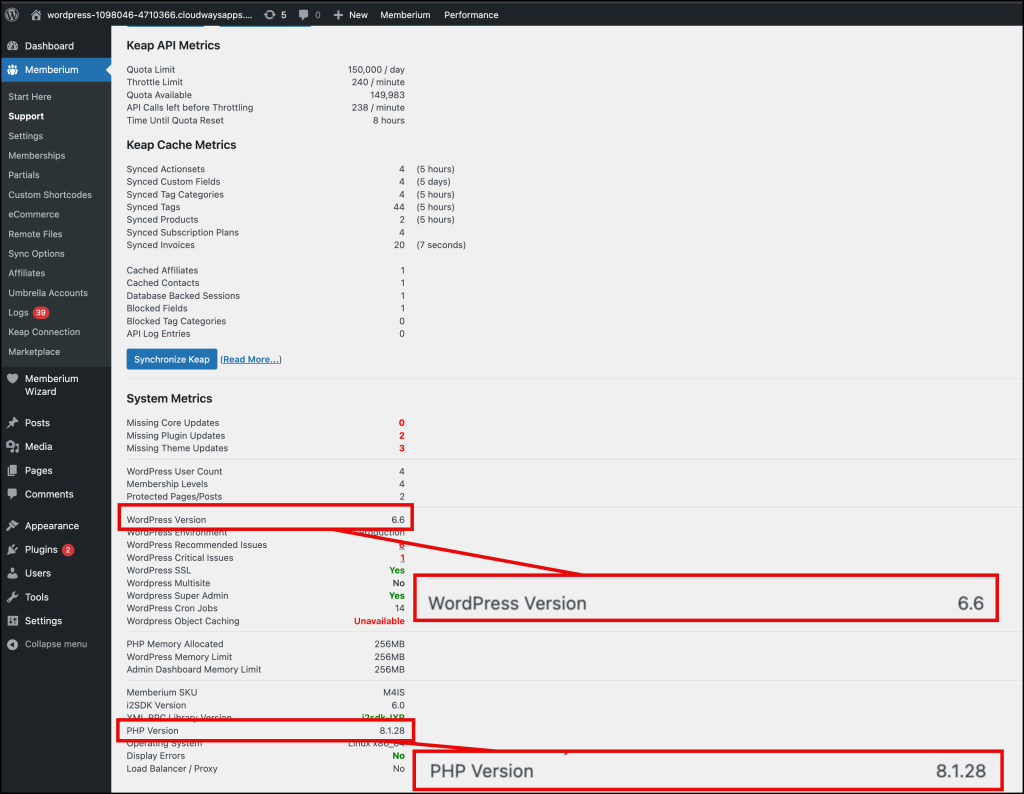
If your WordPress version is 6.2 or greater, you’re all set.
If your PHP version is 7.4 or greater, you’re all set.
To update WordPress, follow their steps here.
To update your PHP version, reach out to your web hosting provider and ask them their instructions on upgrading your PHP to 7.4 or newer. Eventually, PHP 8.0 will be the minimum so it’s recommended to switch now if possible.
Each web host is different which is why we can’t provide a step-by-step guide here. However, you always contact Memberium Support and provide us with your hosting login and we can see about assisting you in upgrading your PHP.
How to Get Expert Help for This Update
If you need additional assistance with the API upgrade process, we offer several resources:
Memberium Certified Agency Partners: Our partners are experts in Memberium and WordPress integration. They offer consultations to answer your questions about the API upgrade and can help with custom code that may be affected.
Memberium Support: Book a Zoom call with our support team to get your questions answered and guidance through the update process. We’ll assess your site’s compatibility and provide recommendations tailored to your specific setup.
Note: For complex situations or sites requiring extensive modifications, our Agency Partners may be better equipped to provide comprehensive solutions.
How to Get the New Update
You can download and install Memberium 3.0 in two ways.
- Install manually by downloading the plugin .zip file below and installing it as any other plugin. Go to the WordPress plugin screen, click Add New, Upload the .zip, and then WordPress will recognize this is an upgrade.
The benefit to installing this way is WordPress will notify you of any incompatibility with the WP version or your sites PHP version.
- The second way to install is by going to Memberium > Support > Updates tab. A short video here explains the process.
Either method works fine. Choose the one your are most comfortable with or book a call with Memberium Support above to have us assist you with the process.
Requirements:
- WordPress Version 6.2 or newer
- PHP Version 7.4 or newer (8.0 recommended)
Memberium Download Link: Click Here to Download
We’re Here to Help! If at any time you experience any issues, please reach out to Memberium support who can assist you in making this upgrade.Finding Your SAK in Keap:
Go back to the Memberium tab and paste this key into the SAK field. Once pasted in, click the blue “Update Configuration” button at the bottom of the page. The page will reload and the “Current API status” will show a green Verified status.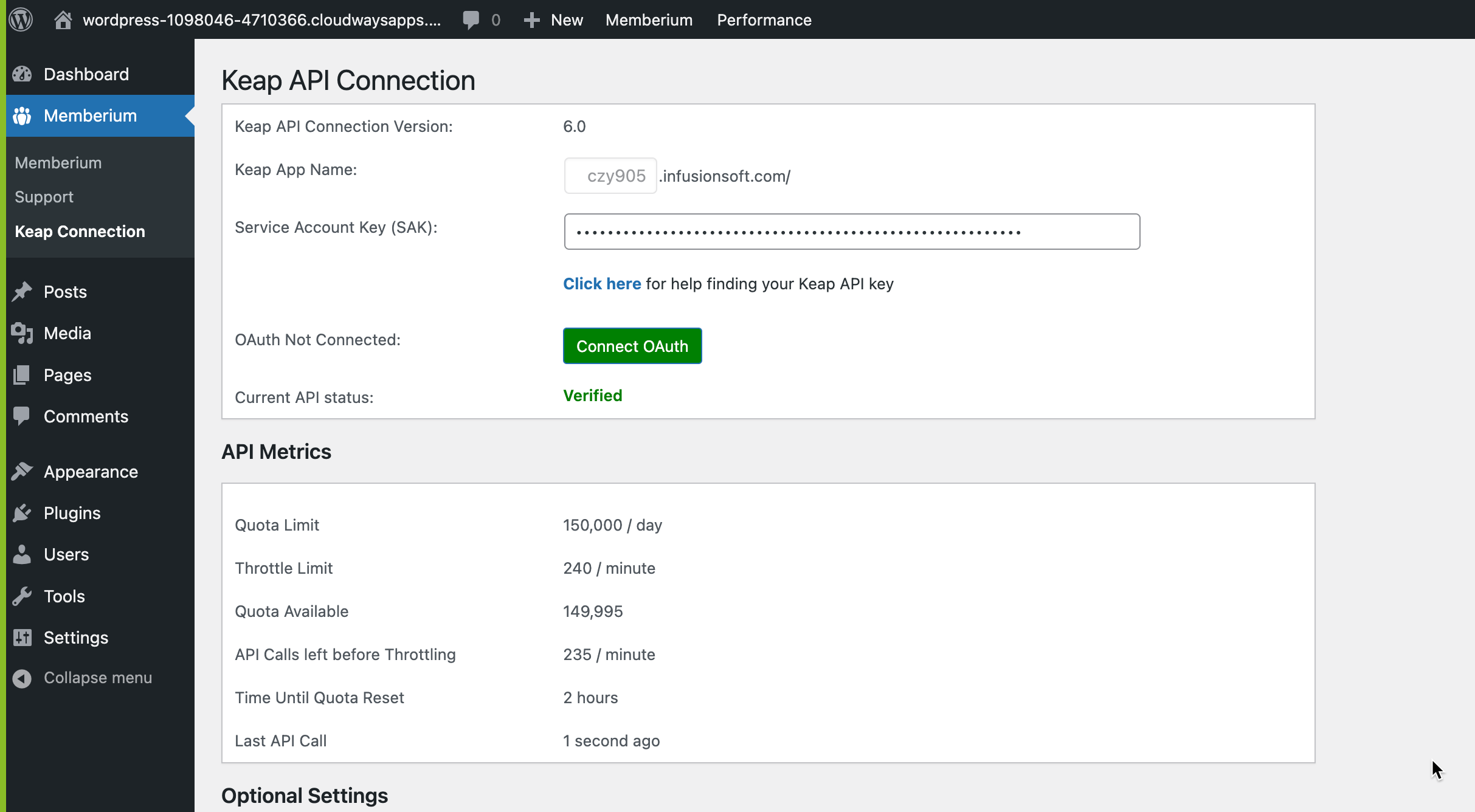
Connecting OAuth
For redundancy and increase Keap API limits, you may also want to Connect OAuth. OAuth is another way to authenticate with Keap’s API. OAuth works in the background and requires Memberium to refresh its access keys on a regular basis. This is no issue for most sites. However, since Memberium relies on WP-Cron to perform these scheduled tasks, it’s possible that if your site does not receive frequent traffic (days without visitors) or if your hosting setup has changed how WP-Cron works, you may end up with a scenario where you have to re-authorize the OAuth connection again. If that happens, you will have to log back into your WordPress site and follow these steps again. You can setup host-based or server side cron as explained in this guide here. This resolves the issues mentioned above. However, the site will remain working as long as you’ve set up your SAK since Memberium will fall back to using the SAK. Why would anyone want to use OAuth then? Increased API limits.| SAK | OAuth | |
| Daily Call Limit | 150,000 | 1,000,000 |
| Per Minute Limit | 240 | 6,000 |
You will be taken to a page on Keap’s site. Log into Keap if you’re not already and then select the app name you want to connect Memberium to. Click the Blue “Allow” button. 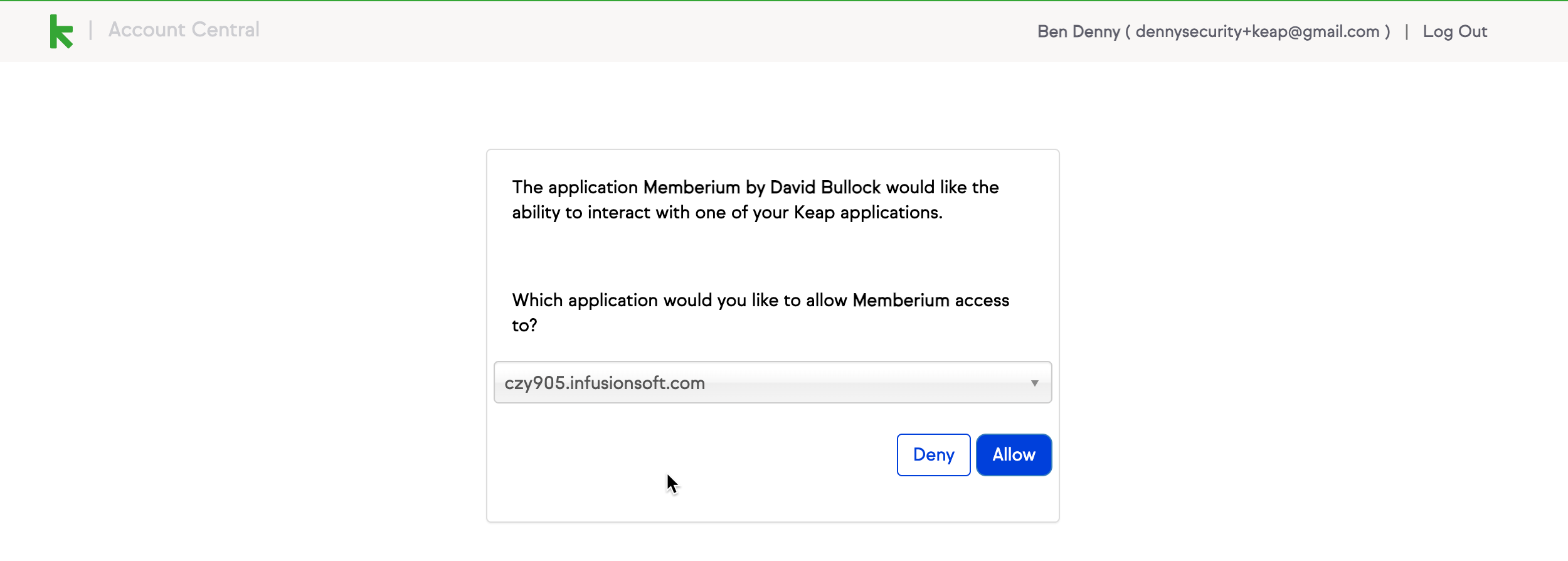 That’s all there is to it! You’ll be redirected back to Memberium and you’ll see the OAuth status:
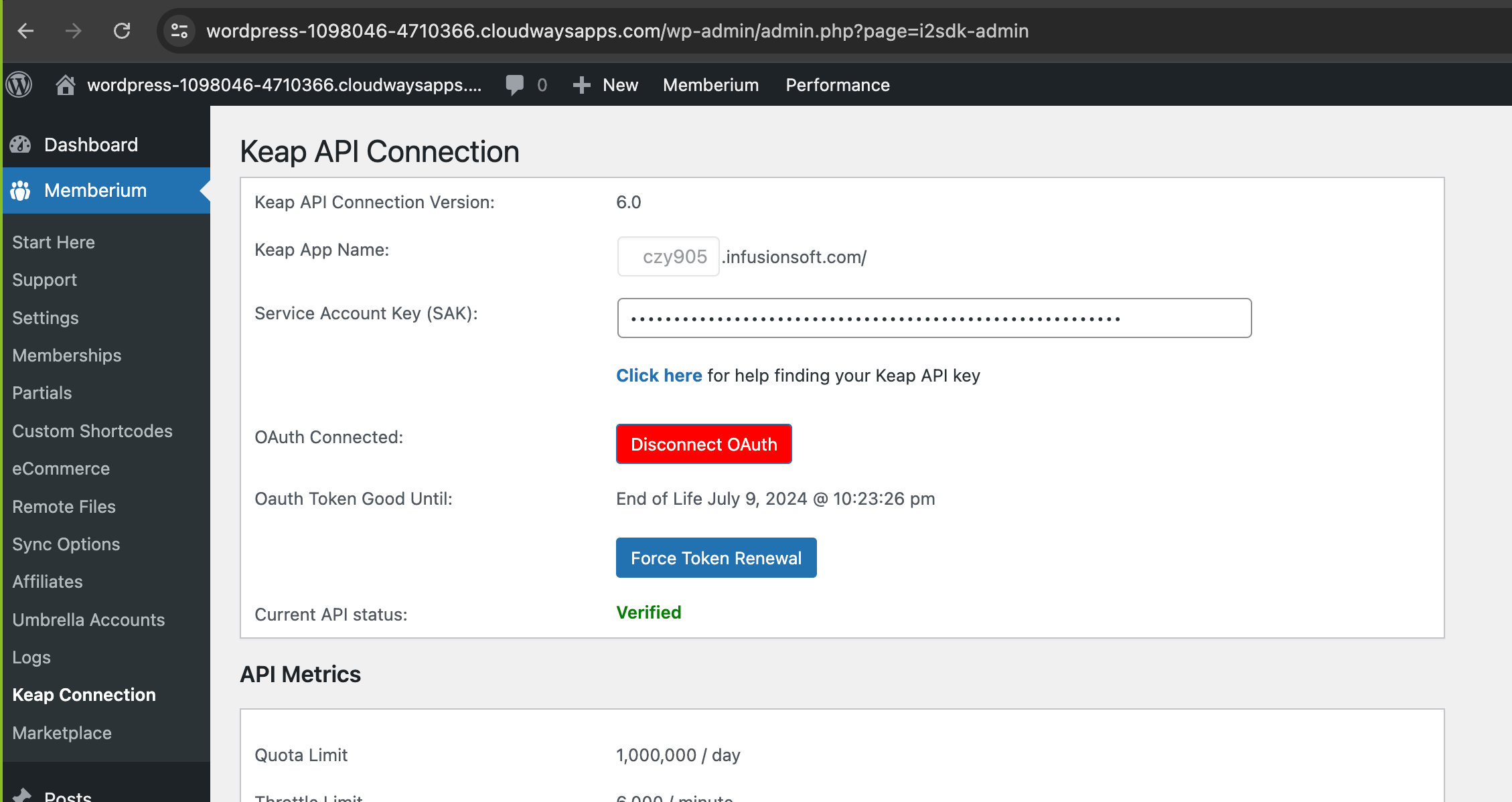
 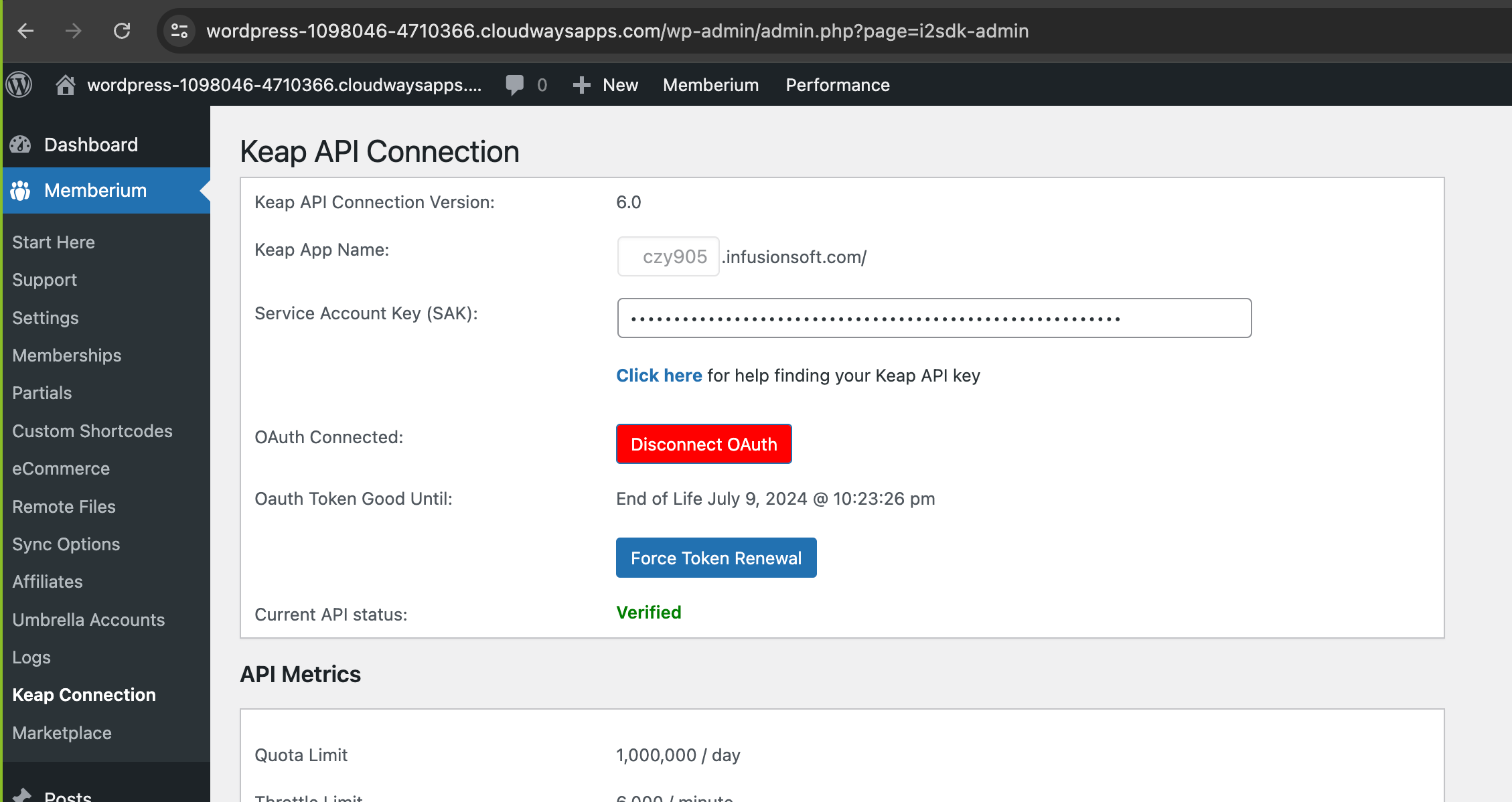 For reference, we include the date that our token expires. We will automatically attempt to refresh the token 3 hours before it expires. If for whatever reason we cannot refresh the token, the site will fall back to SAK until your can reauthorize the OAuth connection.
You can also force a token renewal. This shouldn’t need to be used in normal operation and mostly exists for debugging and support.
For reference, we include the date that our token expires. We will automatically attempt to refresh the token 3 hours before it expires. If for whatever reason we cannot refresh the token, the site will fall back to SAK until your can reauthorize the OAuth connection.
You can also force a token renewal. This shouldn’t need to be used in normal operation and mostly exists for debugging and support.