 Memberium
Memberium for Keap allows you to protect Avada Containers, Columns, and Elements with Keap tags.
This lets you show and hide different content based on what tags a member has. Special offers, upgrade deals, and more…
How to Install the Avada & Keap Integration using Memberium
Actually setting up the integration is simple. Just make sure you’re using the latest version of Avada theme and builder and the latest version of Memberium for Keap.
The Avada integration in Memberium was added in version 4.0.8. Click here to see how to update Memberium.
Once you have both Avada and Memberium active on your site, the integration will automatically start working!
How to Protect Avada Elements with Keap Tags
Using the integration is easy! Go to the options of any container, column, or element and you will see an “Extras” tab.
Click that and you’ll get the following options…
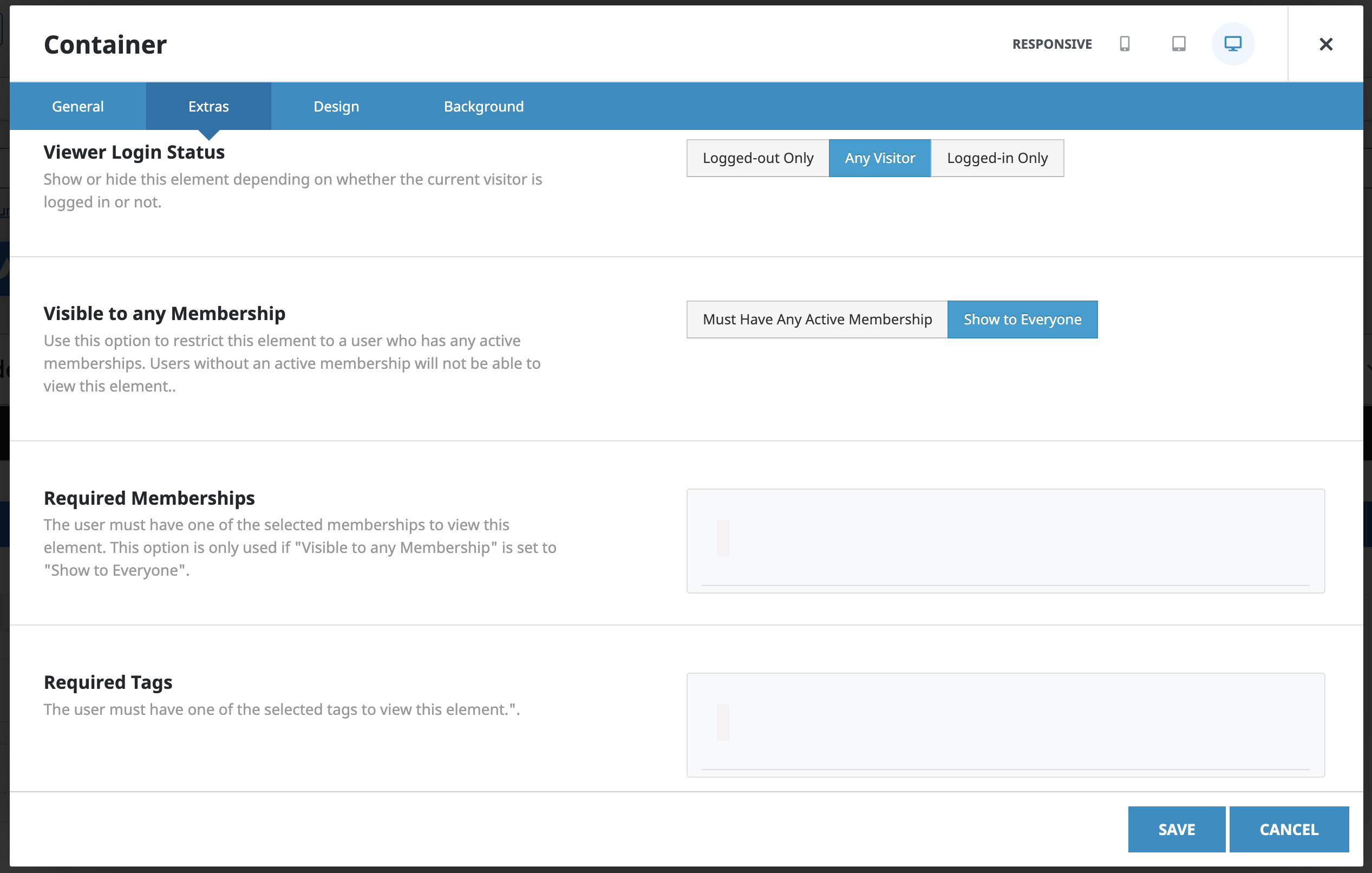
Viewer Login Status: This lets you decide if you want to show the element only to people who are logged-in or logged-out. If you want to protect an element with memberships and tags, you can leave this setting as is.
Visible to Any Membership: This setting lets you easily say “I want all my memberships to be able to see this” without having to add in all your memberships. If someone doesn’t have a membership, they won’t see this.
Required Memberships: Here you can specify which membership levels should be needed to see the element. If you select multiple, only ONE will be required.
Required Tags: Similar to the memberships option, this lets you specify tags that will be needed. If you select multiple, only ONE tag will be required – not all of them.
You can combine the memberships and tag options, too!
What Happens if a Member Doesn’t Have Access?
If a member doesn’t have access based on the settings you configured, the protected container or element will simply be hidden.
They won’t see anything.
It is common practice to set up an opposite condition so that something displays to those people. Possibly an upgrade offer for example.
That’s all for this integration!
If you have any questions at all, don’t hesitate to reach out to the support team!