 Memberium
This setting under Memberium’s eCommerce Tab allows you to define a default merchant account to be used for eCommerce actions. This default merchant account only applies to eCommerce transactions that are executed within Memberium. It does not control which merchant account is used for transactions that happen within Infusionsoft itself.
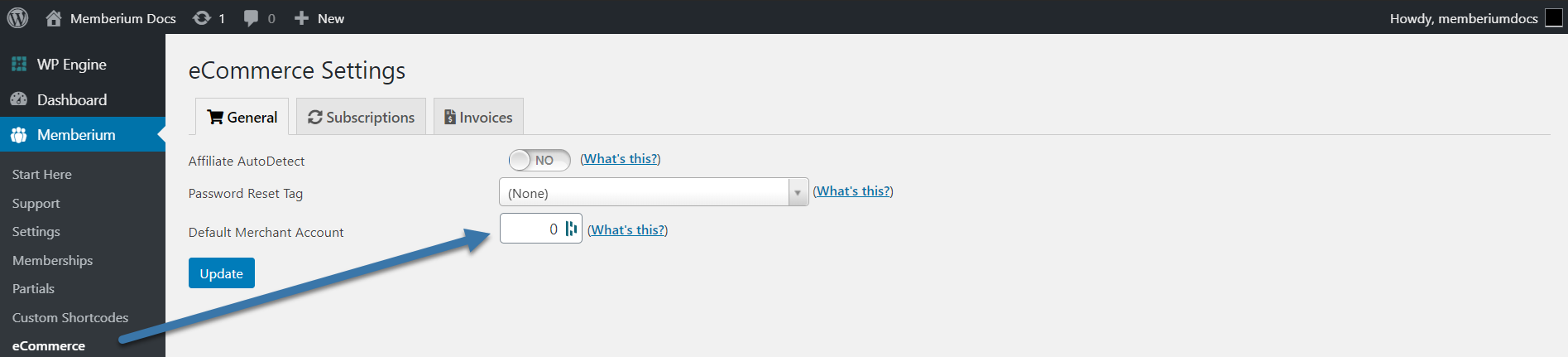
The instructions below will guide you to finding your merchant account ID. Please don’t hesitate to contact support for assistance if you would like help.
Finding Your Merchant Account
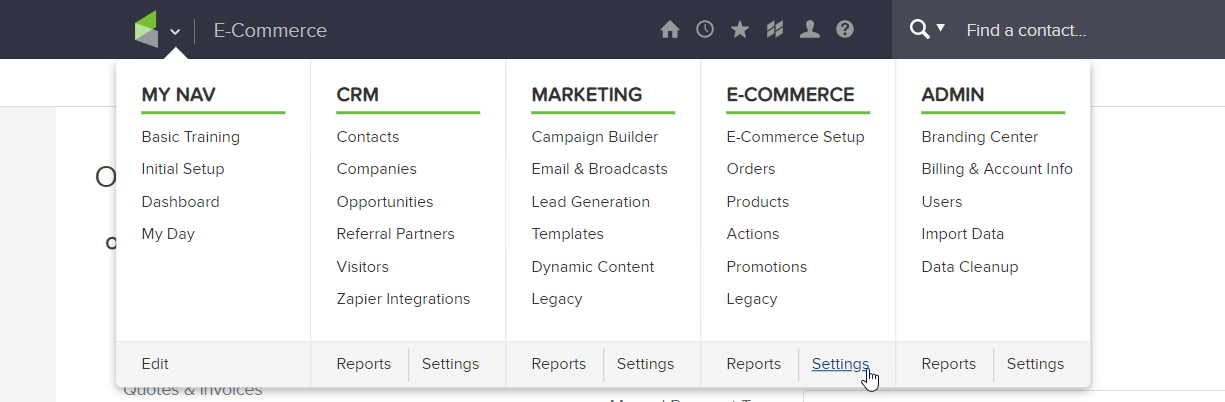
Step 1: In the main navigation, go to eCommerce > Settings:
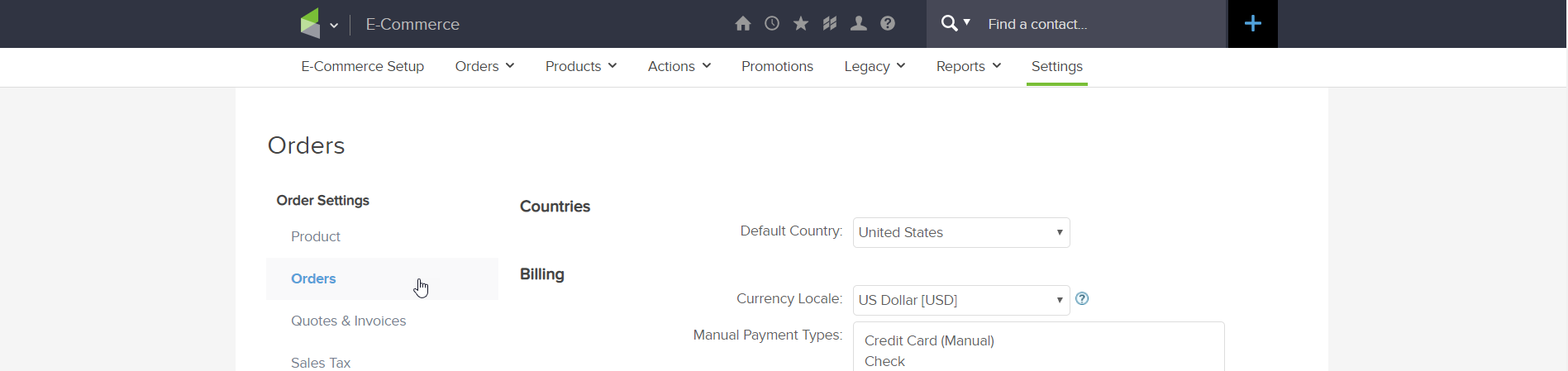
Step 2: In the left-hand navigation menu, select “Orders”:
Step 3: On this “Orders” page, notice the dropdown for “Default Merchant Acct for Manual Orders”:
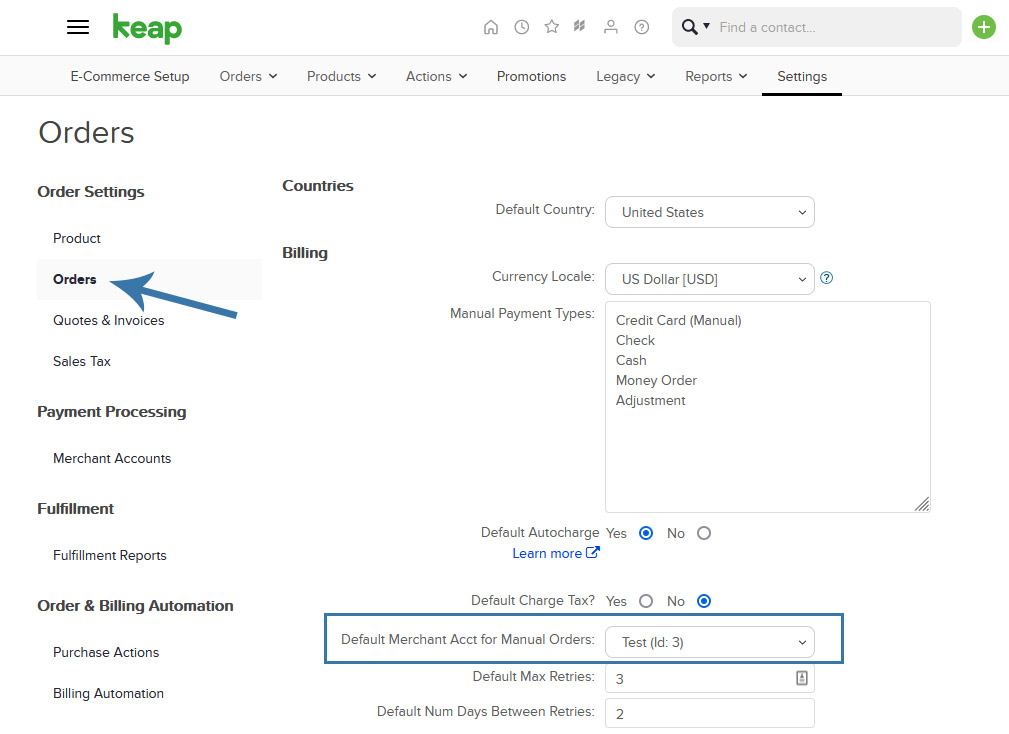
Step 4: You should see the name of your merchant account. In the name, you’ll also see a number which is the ID of your merchant account in Infusionsoft.
In my case, the ID would be “3” as you can see from the above screenshot.
Non-Infusionsoft Merchant Accounts
If you’re processing your orders and subscriptions through PayPal, Stripe, or a shopping cart system that implements orders and subscriptions outside of Infusionsoft, then this functionality will not work for you. PayFlowPro uses PayPal but operates like a credit card processor and will work with this.