 Memberium
You’re using the New Keap Interface if your Keap looks like this…
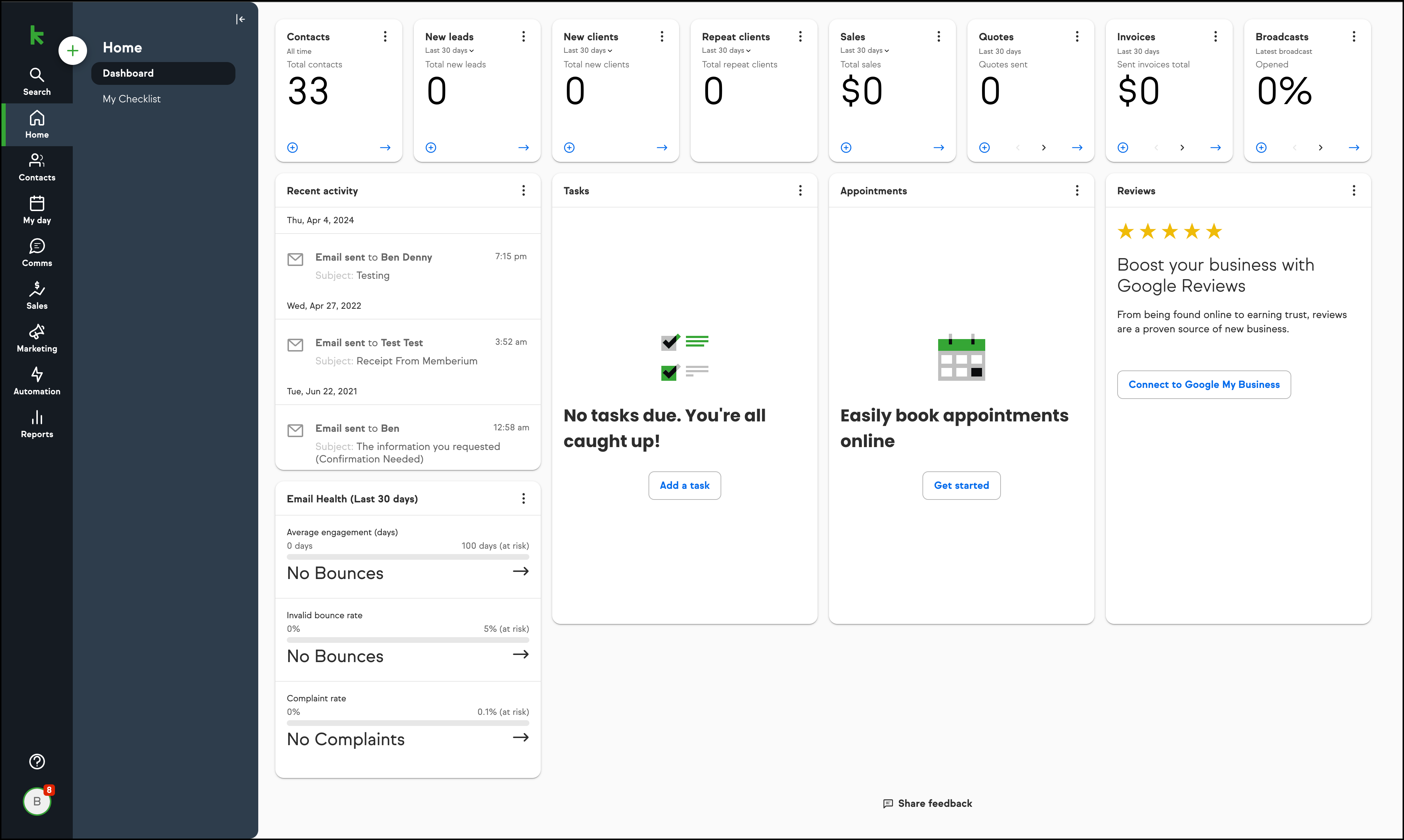
1. Log into Keap, Click your profile in the bottom left, Click Settings
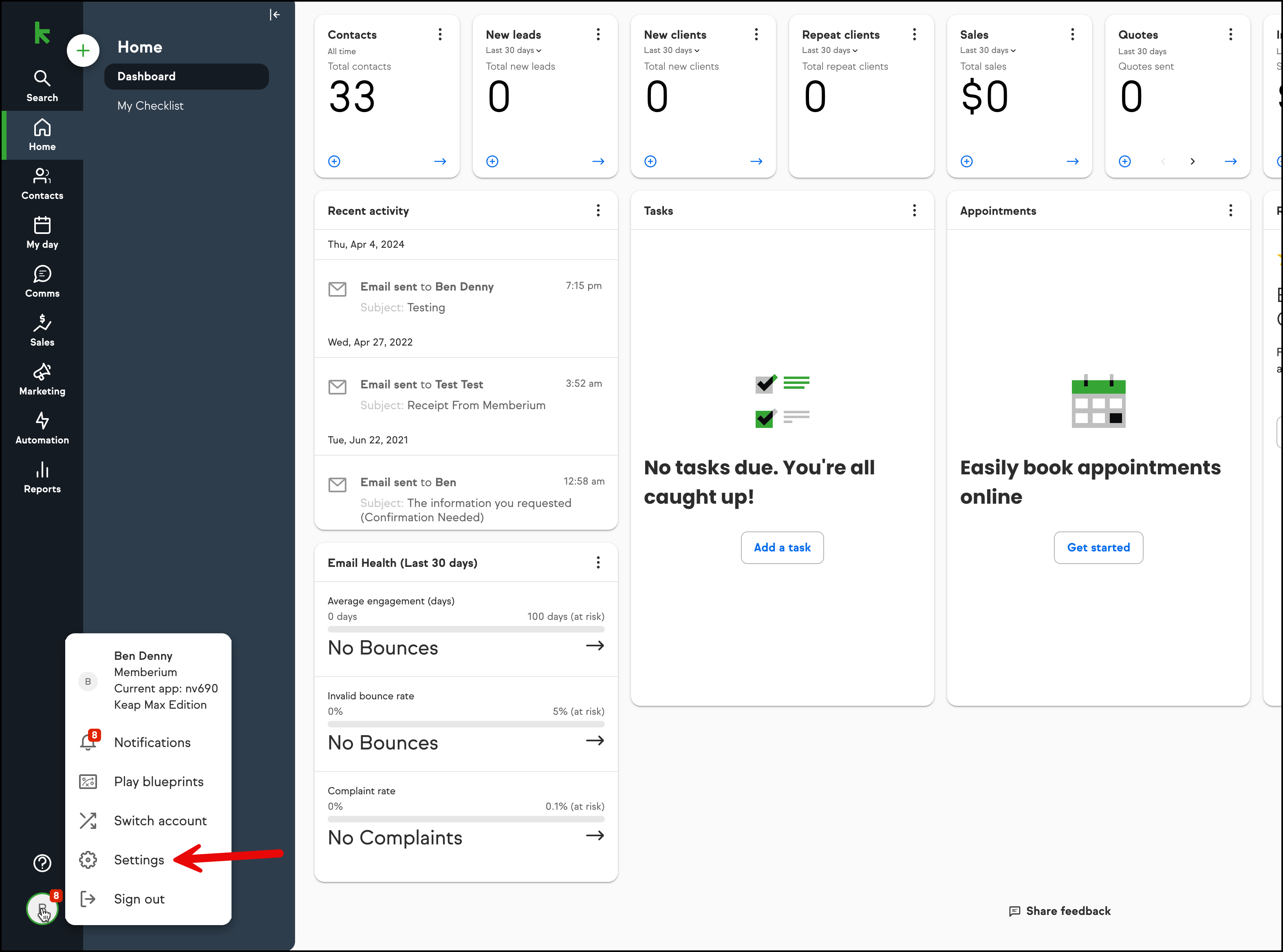
2. Click API in the settings list. You may need to scroll down the page some.
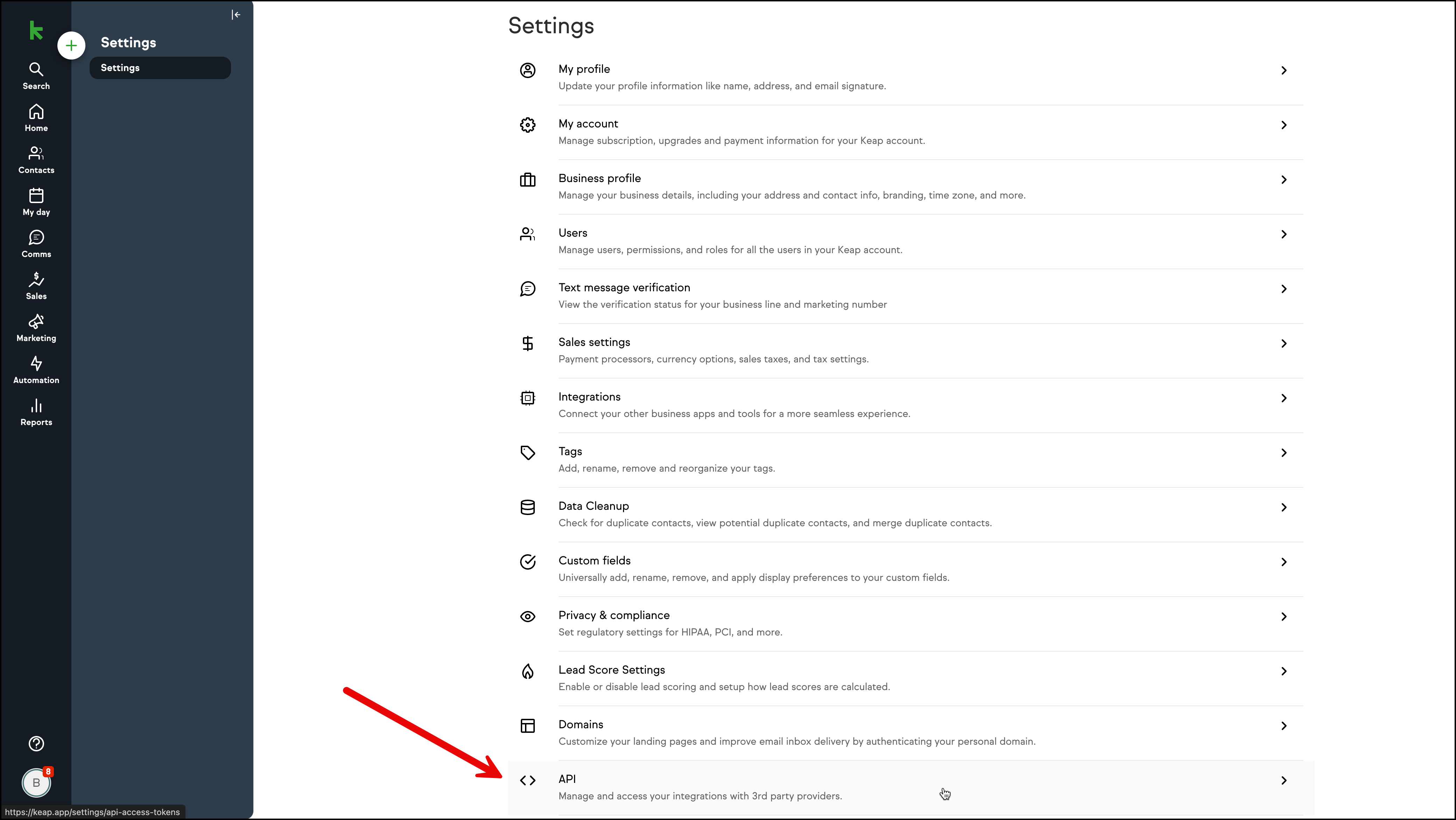
3. Click on the “Service Account Key” tab. Then click “Add New”
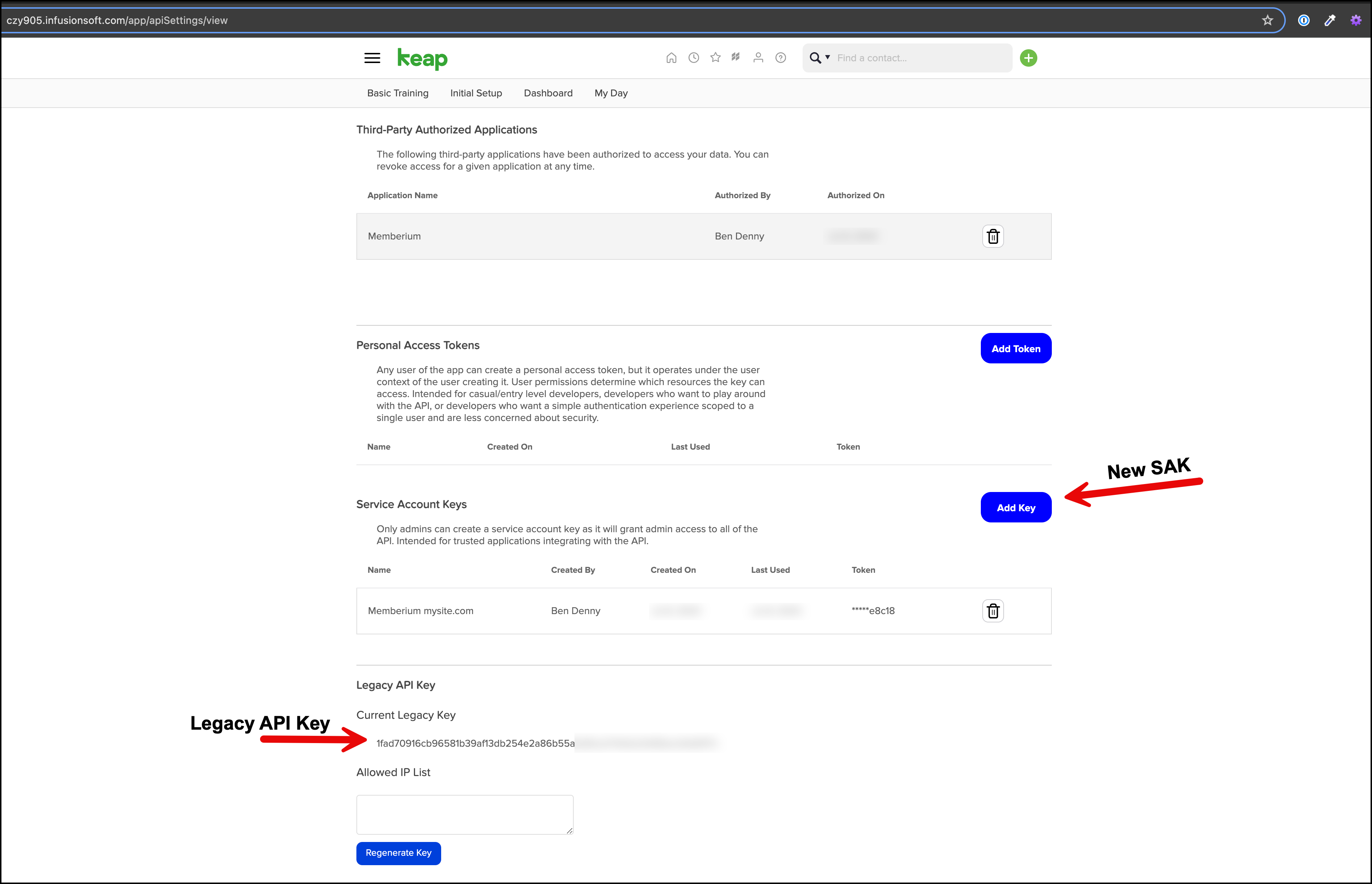
Note: You may also see the Legacy Key tab. This is being phased out but if your version of Memberium asks for this, you can find that key there.
4. Enter a Descriptive Name for the SAK.
We recommend “Memberium [Your Domain Name]” example: “Memberium mysite.com”
The more descriptive, the better you’ll be able to control what has access to your Keap app.
You only want to use one SAK per application. Create this key for dedicated Memberium use. If you have multiple sites, create one for each site for maximum API calls on each site.
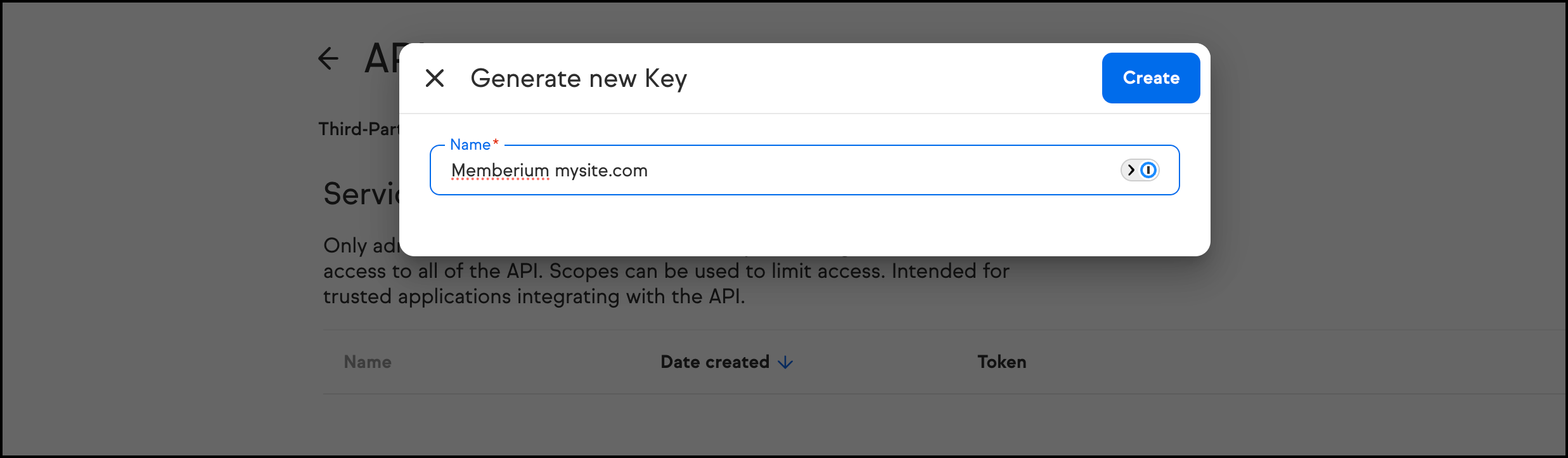
5. Copy your SAK to a safe place.
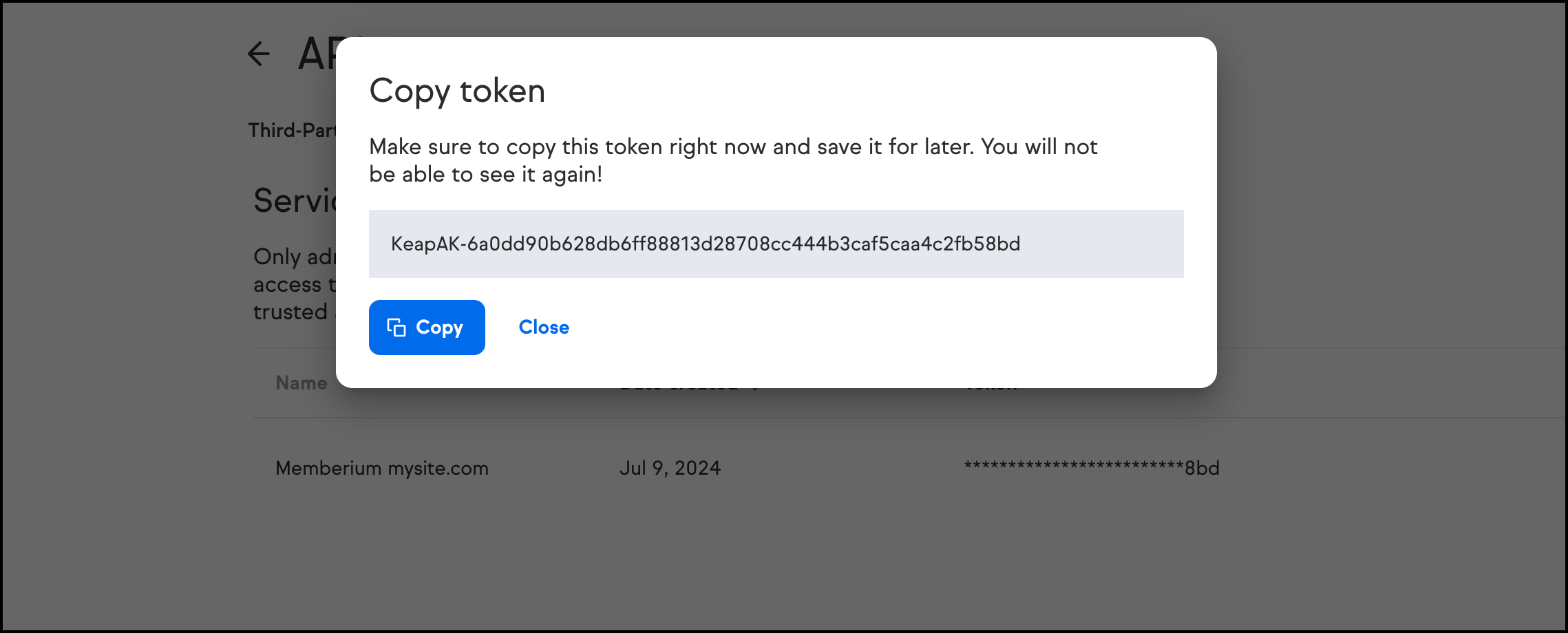
You will only be able to view the key one time. Keap will not show you the key again.
That is how you can find your Service Account Key for use with Memberium.
You’re using the Classic Keap Interface if your Keap looks like this…
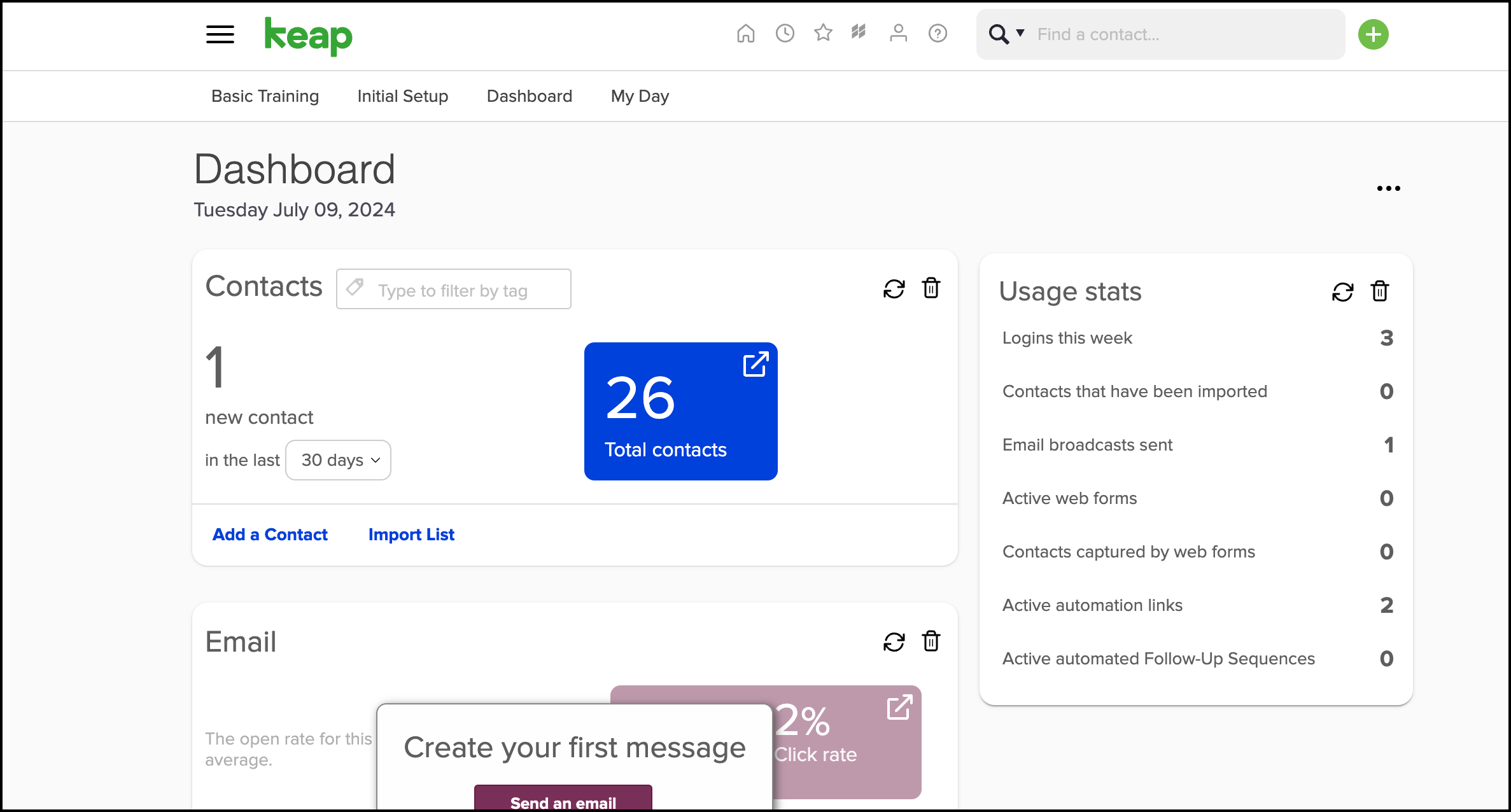
There are 2 Types of API Keys:
- Service Account Keys (SAKs)
- Legacy API Keys
Legacy API keys will no longer be supported by Keap after October 2024. New releases of Memberium offer SAK support as well as OAuth support. Learn more about that here.
You can find both types of API Keys in the same place.
1. Log Into Keap, Click the Profile Icon, Click API Settings:
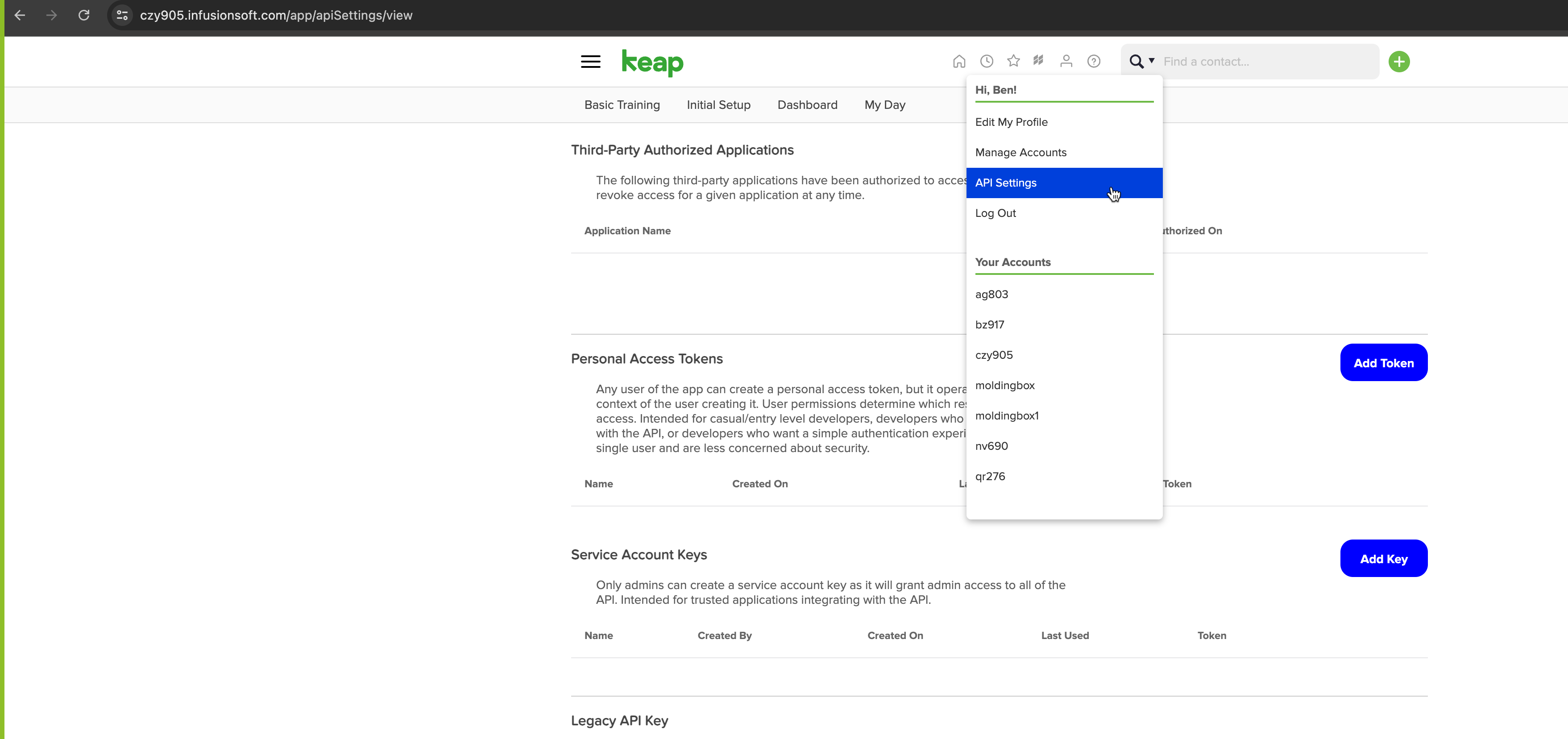
2. The Legacy API Key can be found at the bottom of this page. However, you should not use this key as it will no longer be supported by Keap. Instead, click the blue “Add Key” button:
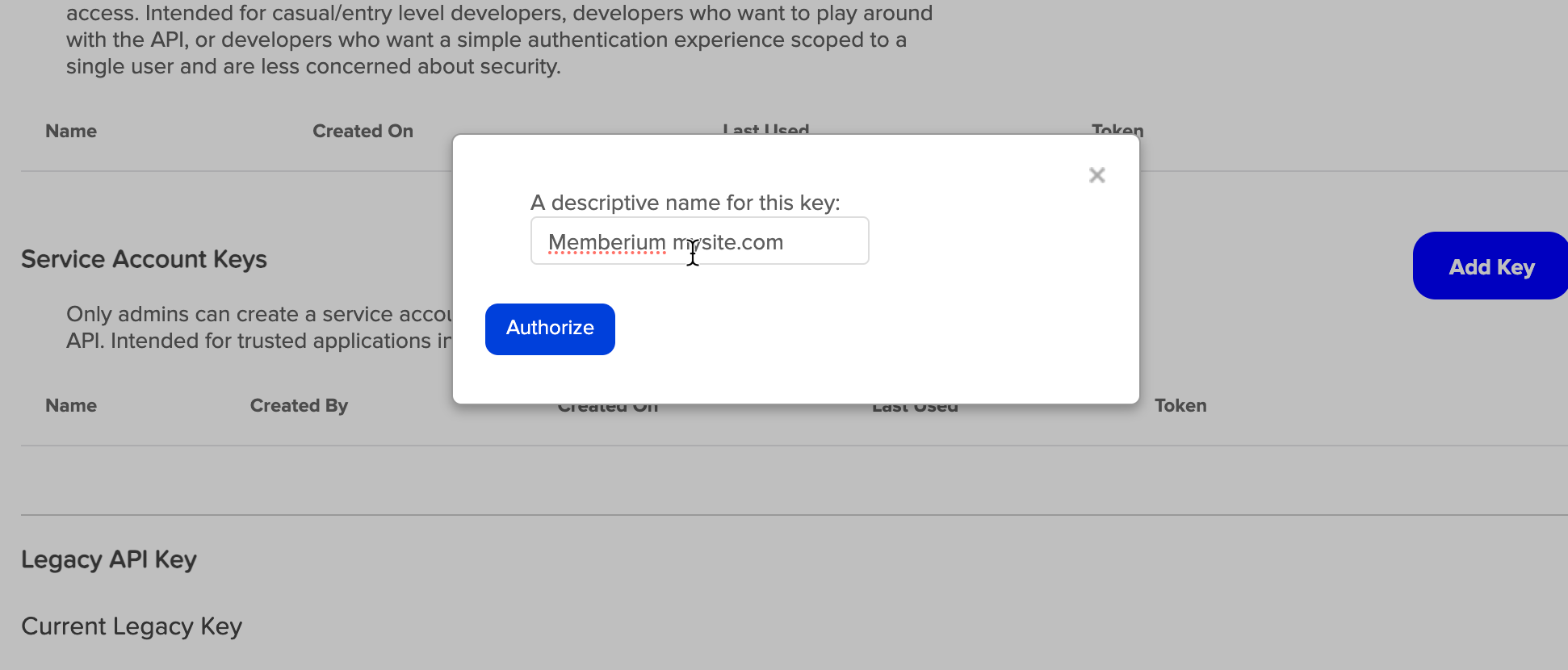
3. Type in a description for the SAK.
We recommend “Memberium [Your Domain Name]” example: “Memberium mysite.com”
The more descriptive, the better you’ll be able to control what has access to your Keap app.
You only want to use one SAK per application. Create this key for dedicated Memberium use. If you have multiple sites, create one for each site for maximum API calls on each site.
4. Copy Your SAK to a Safe Place
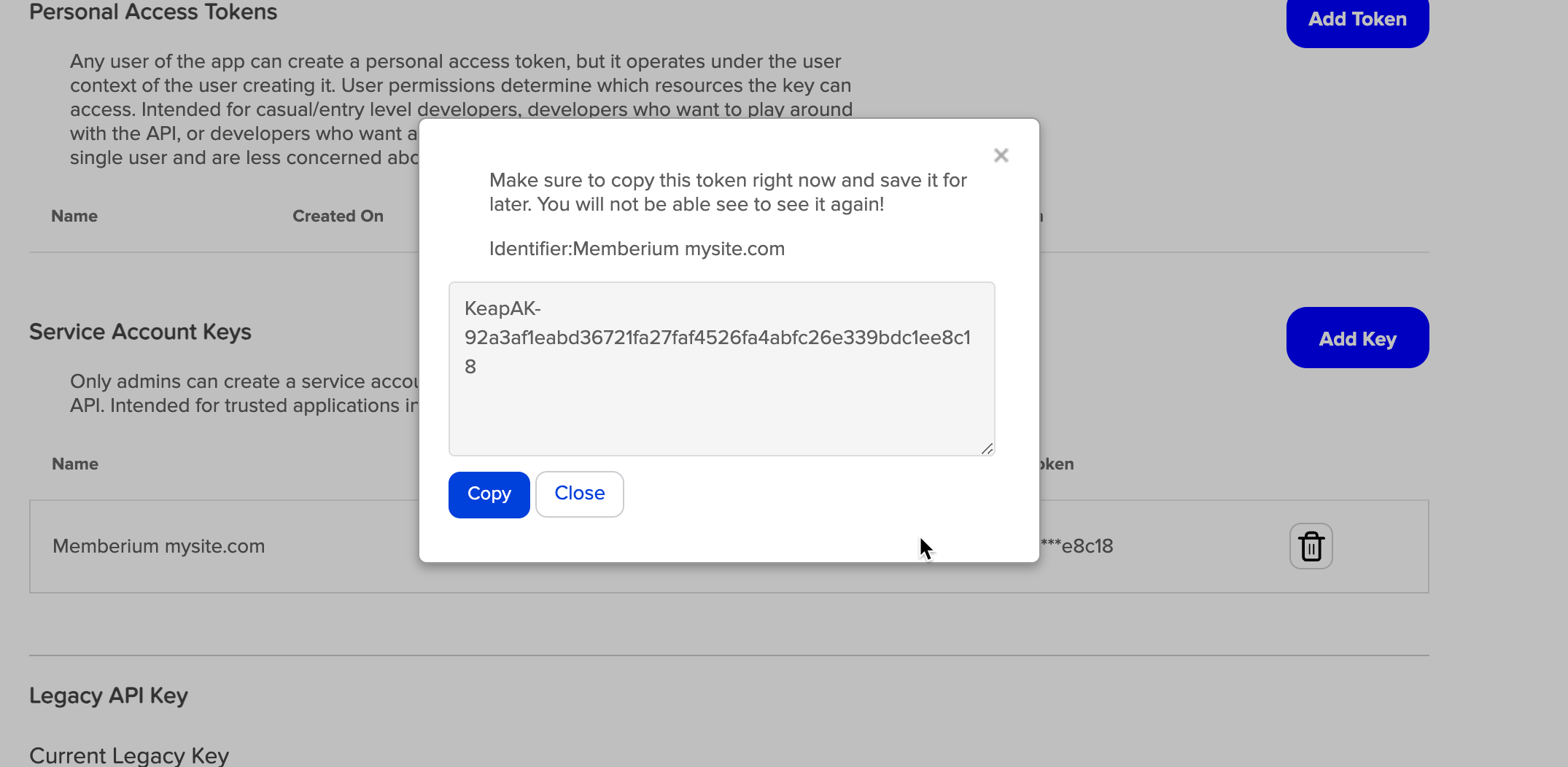
You will only be able to view the key one time. Keap will not show you the key again.
That is how you can find both your Legacy API Key and Service Account Key for use with Memberium.