 Memberium
Description
This shortcode uses the built-in WordPress login form function to display a simple login form. You can style the login form using the standard WordPress CSS classes.
Shortcode Examples
This shortcode WILL NOT DISPLAY if you are already logged in or logged in as an admin!
[memb_loginform]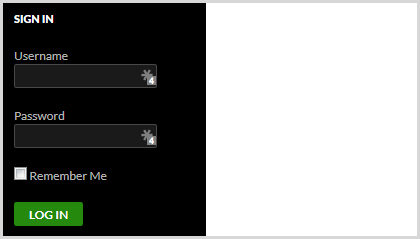
This is how the shortcode looks like with a redirect url and a show always parameter:
[memb_loginform show="always" redirect="/members/"]The above shortcode will display the login box even after the user has logged in. Once a user has logged in, it will redirect the user to http://www.yourmain.com/members.
Customized Example Usage:
[memb_loginform username_label="Email Address" button_label="Login Now" password_label="Password"]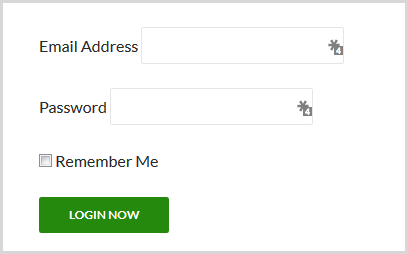
Shortcode Parameters
redirect | Specify a URL to go to after login, or {{current.url}} to return to the current page. By default, the member will be directed to the page as specified in the membership level, or the home page if no page is specified by their membership. |
|---|---|
form_id | default = ‘loginform’ |
username_label | default = ‘Username’ |
password_label | default = ‘Password’ |
button_label | default = ‘Log In’ |
show | default = ‘never’ |
remember | yes/no – default = ‘no’ |
remember_label | Label for the remember checkbox. Default is ‘Remember Me’. |
Additional Information
Setting a Custom Login Failed Message
By default, Memberium will display a “Login Failed” message if the user enters incorrect login details. If you’d like to change this message, you can do so by enabling “Multi-language” support.
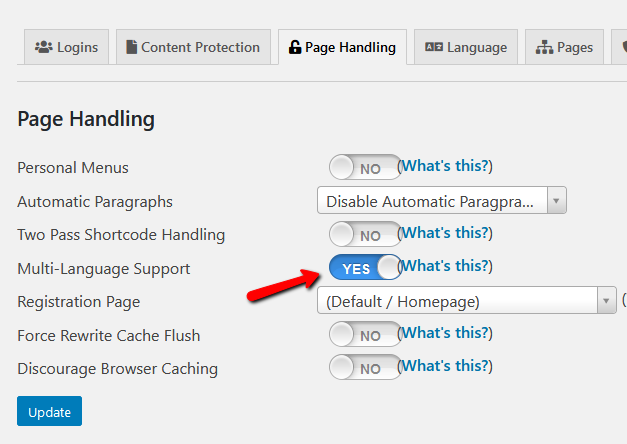
Go to Memberium > Settings > Page Handling and enable the “Multi-language Support”
Once it’s enabled, go to Memberium > Settings and click on the language tab. You’d then enter details like this:
Context: memb_loginform
Original text: Login Failed
New Text: Enter new login failed message here
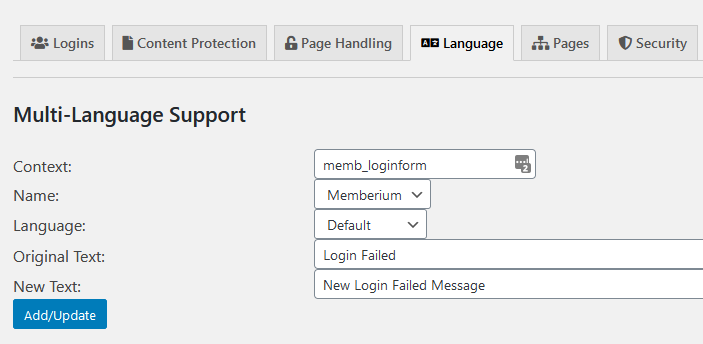
You’d leave the Name and Language fields to the default values.
Once this is done, click on Add/update.
Add Placeholder Text Using jQuery
You can use jQuery to set the placeholder attributes on the element.
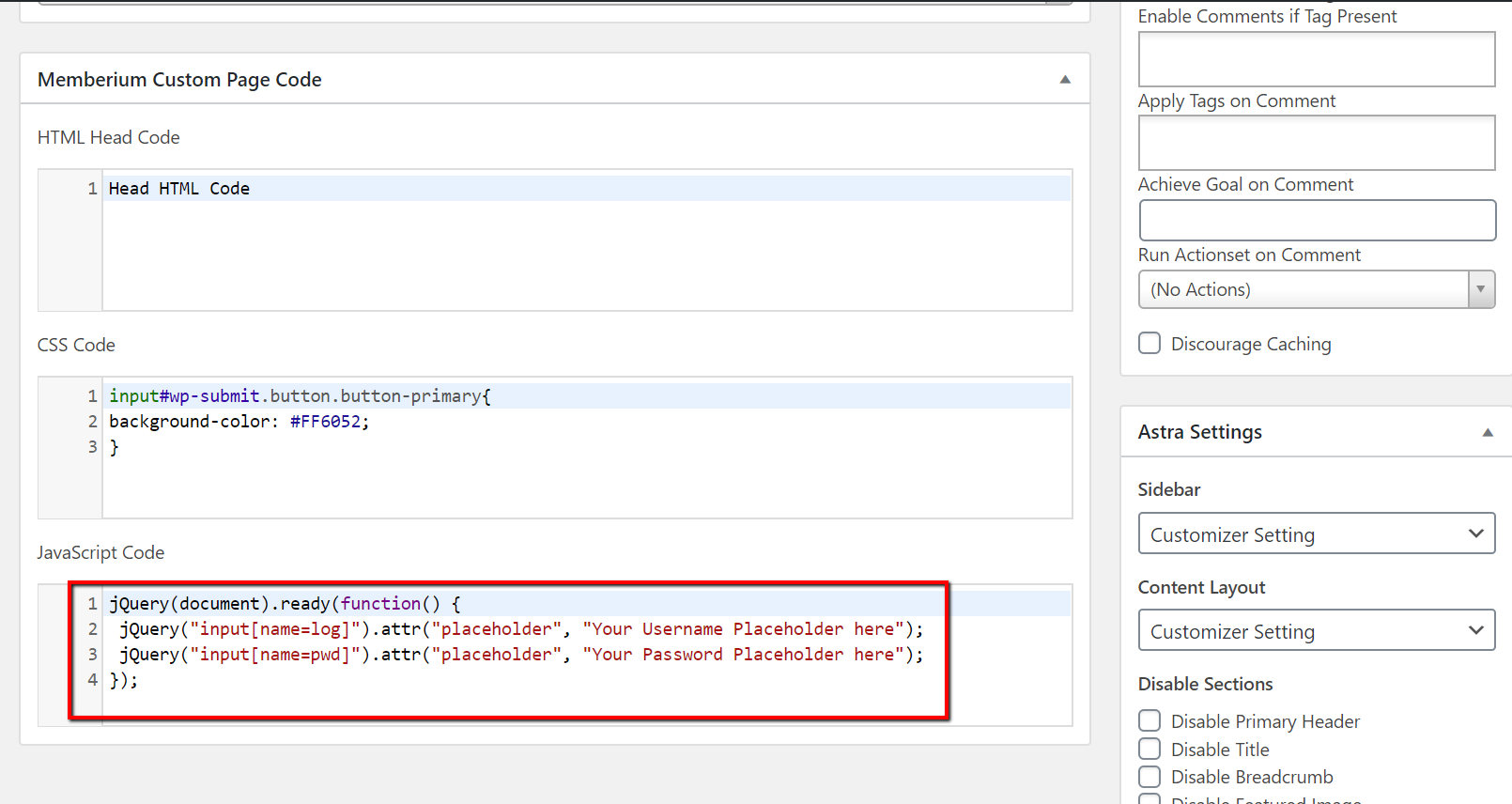
jQuery("#id").attr("As an example, the code below will add a placeholder “Your Username Placeholder here”
jQuery(document).ready(function() {
 jQuery("input[name=log]").attr("placeholder", "Your Username Placeholder here");
 jQuery("input[name=pwd]").attr("placeholder", "Your Password Placeholder here");
});
You can place this in the Memberium JavaScript box:
Shortcode Attributes
| Conditional | No |
|---|---|
| Nestable | No |
| Accepts formatting | No |
| Capturable | No |