 Memberium
Upgrade to Access Group Accounts
The Teams feature is part of our Group Accounts, available on the Pro plan. If you’re on the Standard plan and would like to unlock this feature, click here to contact support and upgrade your account.
Teams is a Memberium feature added in version 3.10 and newer.
Teams builds off the popular Group Accounts / Umbrella Accounts features that allow you to sell group or corporate access. Generally, you have a parent (main) account that makes the purchase and that purchase allows them to add sub-accounts who can access the same content as the parent.
There are various ways to configure it to change what the child can access. For full Team Accounts docs, please click here.
Uses Cases for Teams
One of the drawbacks with Group Accounts before this update is that all children shared the same access. There was no simple way to say this child gets Course A while this child gets Course B.
That’s exactly the challenge Teams solves.
You, as the admin of the site, can setup a Team and choose which tag(s) the children added to that team get. For example, you may create a Team for each course that you offer. This would allow parents to add children to only specific courses. Each child would see only the courses their parent added them to when they logged in.
Each Team is also linked to a custom field on the parent record. This custom field stores the number of children they can add to that team. For example, let’s say you sell 50 seats to Course A and 25 seats to Course B. In Keap, those fields would be set to “50” and “25”. The parent would only be able to add 25 children to Course B. The same child can be added to multiple teams.
The bottom line: Teams in Memberium give you the flexibility to control access for sub-accounts, allowing you to assign specific content to different children within the same group account. This means you can sell courses or memberships in bulk, while still tailoring the experience for each individual based on the parent’s choices, making it easier to manage team-based memberships with precision.
How to Create a Team
Creating a team with Memberium is simple. Go to Memberium > Group Accounts > Teams tab.
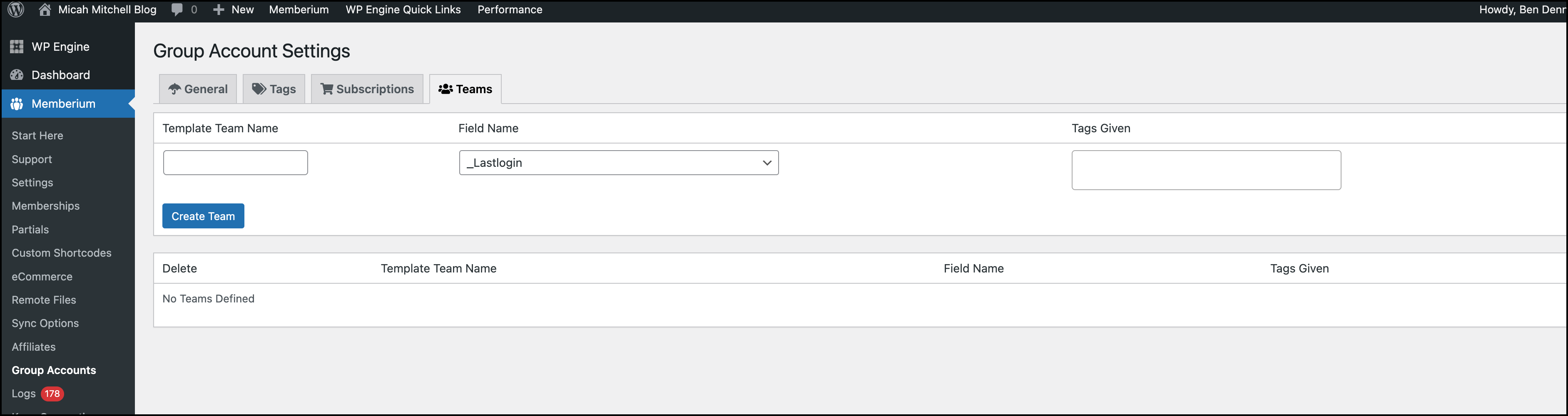
You should see the screen pictured above. In this case, you need to add in the Team name. This might be the name of your course. I would stick to naming it something related to the access they’re going to get.
Next, you will set the field that tells Memberium how many children a parent can add to this team. This needs to be a custom field in Keap. Each team requires a unique field.
Lastly, you will select which tags the members of the team will be given. This could be a membership level tag which would give them a membership level. You can input multiple tags here.
Finally, click the ”Create Team” button.
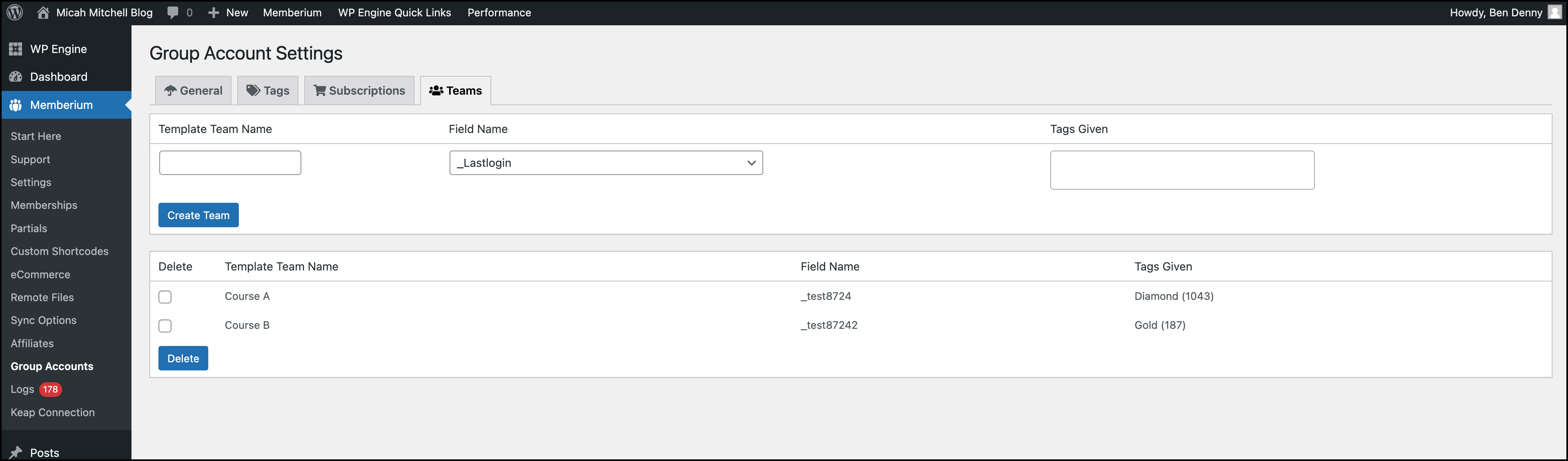
In the example above, you can see there are 2 teams. You can create as many teams as you need.
How to Assign a Child to a Team
Assigning a child to a team is simple.
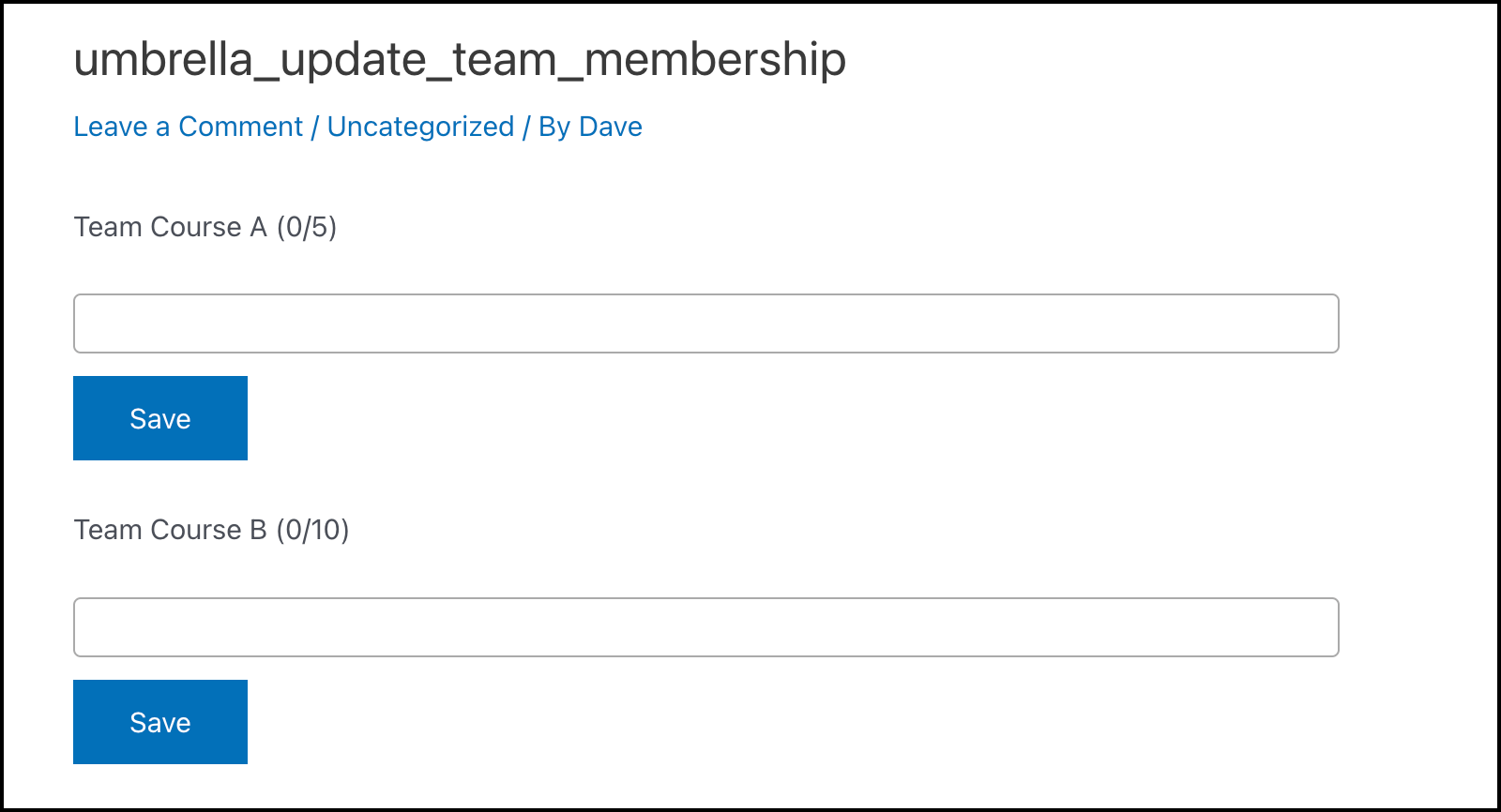
First, as the admin, you need to create a page or add to an existing page the shortcode: [umbrella_update_team_membership]
This shortcode will create an output that has the team name, number of seats used and available, and an input box that will let you select children to add to the team.
Clicking into the input box, you’ll see a dropdown of all your children. You can also search by name or email.
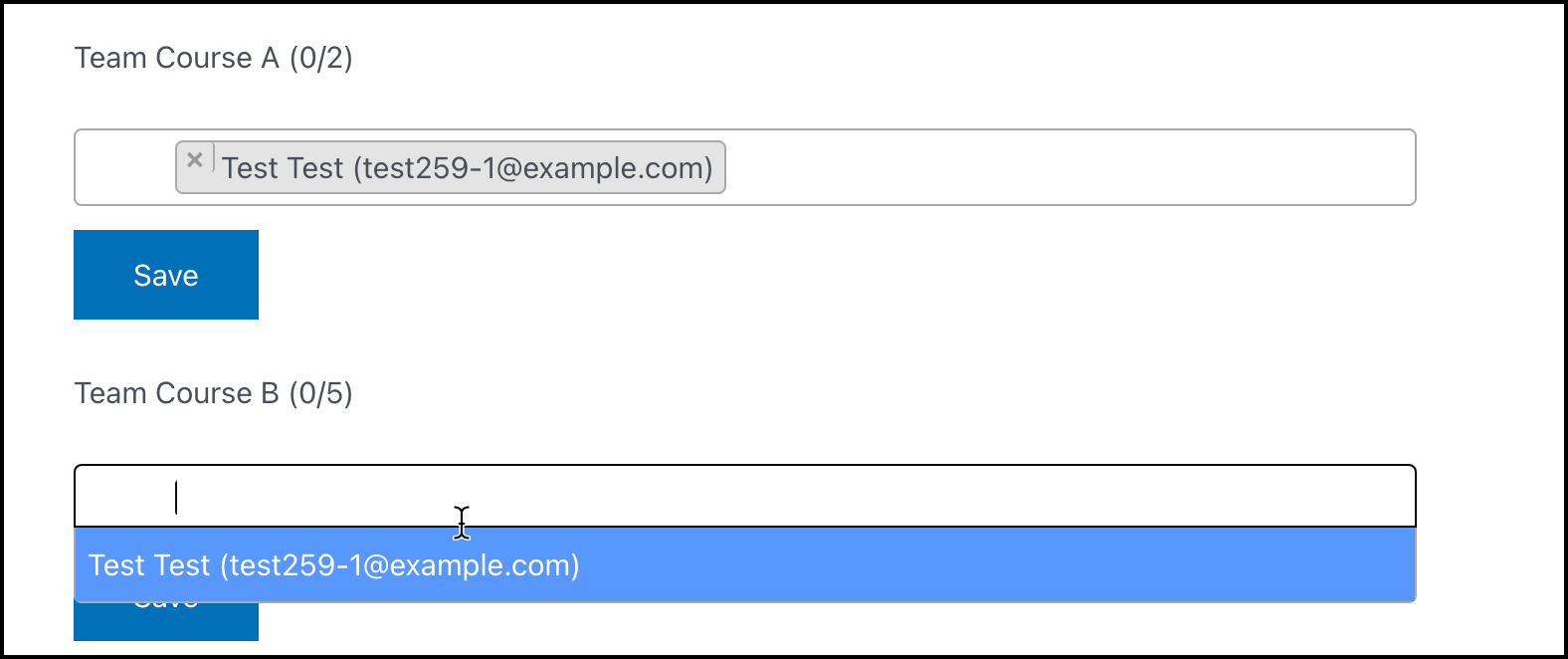
Then you would simply click the “Save” button in order to save.
Related Articles & Links
- Get help with Teams live on Office Hours
- Group Accounts / Umbrella Accounts Setup
- [umbrella_list_children] shortcode